Оставить сообщение
Если вас заинтересовала наша продукция и вы хотите узнать больше подробностей, пожалуйста, оставьте сообщение здесь, мы ответим вам как можно скорее.

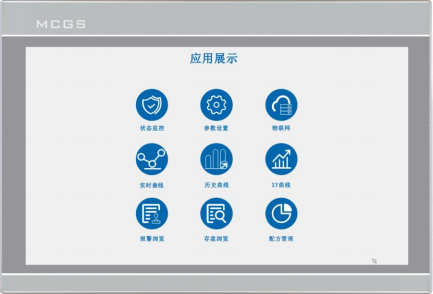
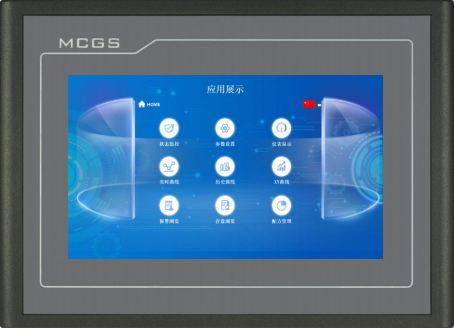
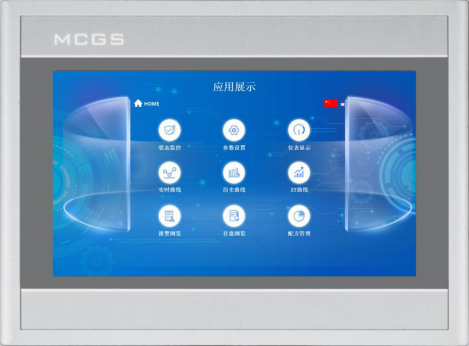
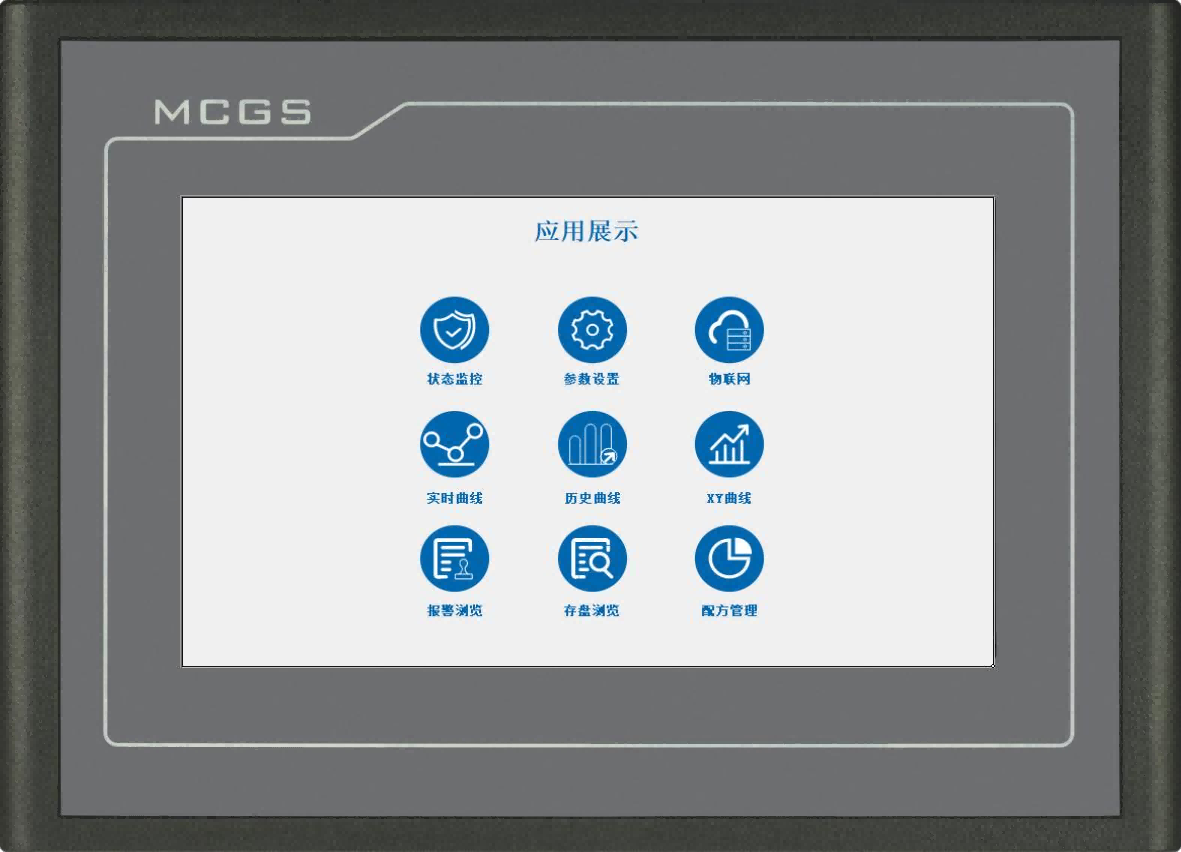
The TPC1430Ni is a 14‑inch MCGS IoT industrial HMI touch screen equipped with quad‑core Cortex‑A53 1GHz processor, full HD 1920×1080 resolution display. It comes with WiFi, 10/100Mbps Ethernet and isolated multi‑serial ports RS232 RS485. Supporting MCGS IoT cloud remote operation and maintenance, the HMI features cast‑aluminum alloy enclosure and IP65 front‑panel protection, stable operation within 0‑45℃, suitable for industrial automation equipment monitoring and factory IoT projects.
Номер изделия :
TPC1430NiМинимальный объем заказа (MOQ) :
50Оплата :
Paypal\TT\Western UnionПроисхождение продукта :
Guangdong, ChinaМасса :
1KGTPC1430Ni is a 14‑inch MCGS IoT industrial HMI touch panel powered by quad‑core Cortex‑A53 1GHz processor with 1920×1080 full HD TFT display and 4‑wire resistive touch adopting cast aluminum alloy housing and IP65 front‑panel protection. Equipped with 10/100Mbps Ethernet WiFi isolated RS232 RS485 serial ports and USB host interface this HMI supports MCGS IoT cloud for remote operation and maintenance data monitoring and centralized device management it runs stably under 0‑45℃ industrial environment with CE and FCC certification widely used for packaging machines water‑treatment equipment production lines and various industrial automation control projects.
Product Specifications
|
Classification |
Item |
TPC1531Ni |
|
Product features |
LCD |
15" TFT |
|
Backlight type |
LED |
|
|
Display color |
262K |
|
|
Resolution ratio |
1024×768 |
|
|
Display brightness |
300cd/㎡ |
|
|
Touch screen |
Fourth-order resistive |
|
|
Input voltage |
24±20%VDC |
|
|
Power isolation |
Built-in |
|
|
Power rating |
16W |
|
|
Processor |
Cortex-A53 quad-core, 1 GHz |
|
|
Internal storage |
256MB |
|
|
System Storage |
512MB |
|
|
Save space |
512MB |
|
|
Configuration software |
McgsPro 3.3.6.6354 SP1.3 and later versions |
|
|
Peripheral interf- ace |
Serial interface |
Method 1: COM1 (232) COM2 (485) COM3 (485) Method 2: COM1 (232) COM9 (422) |
|
Serial port isolation |
Built-in |
|
|
USB port |
1 ×Host |
|
|
Ethernet port |
1 × 10/100 Mbps Adaptive |
|
|
Wireless Expans- ion |
Wi-Fi interface |
Wi-Fi IEEE802.11 b/g/n |
|
Ambient condi- tion |
Working temper- ature |
0℃~45℃ |
|
Working humidity |
5%–90% (no condensation) |
|
|
Storage tempera- ture |
-10℃~60℃ |
|
|
Storage humidity |
5%–90% (no condensation) |
|
|
Size of product |
Case material |
Cast aluminium al- loy |
|
Shell color |
Silvery |
|
|
External Dimensions |
376mm×290mm |
|
|
Cabinet perforat- ion |
366mm×280mm |
|
|
Attestation |
Product certification |
Complies with CE/FCC certification stan- dards |
|
Levels of protection |
IP65 (front panel) |
|
|
Electromagnetic compatibility |
Industrial Grade 3 |
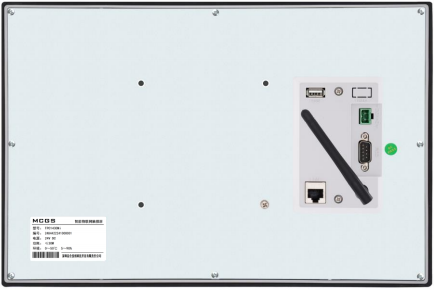
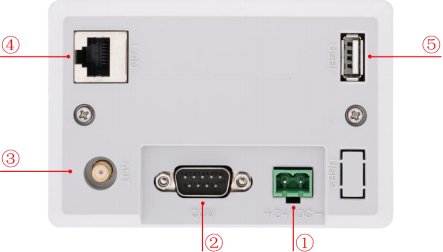
Interface Description
|
① |
Electricity source |
|
|
- |
1 |
0V |
|
+ |
2 |
DC24V |
||||
|
② |
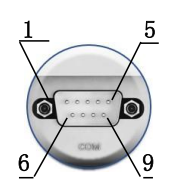
Serial port |
|
COM1 |
2 |
RS232 RXD |
|
|
3 |
RS232 TXD |
|||||
|
5 |
GND |
|||||
|
COM2 |
7 |
RS485+ |
||||
|
8 |
RS485- |
|||||
|
COM3 |
4 |
RS485+ |
||||
|
9 |
RS485- |
|||||
|
COM9 |
7 |
RXD+ |
||||
|
8 |
RXD- |
|||||
|
4 |
TXD+ |
|||||
|
9 |
TXD- |
|||||
|
Note:COM9 and COM2, COM3 They cannot be used simultaneously. |
||||||
| Antenna hole | Turn clockwise | Turn counterclockwise | ||||
|
③ |
 |
 |
||||
|
④ |
Network port |
10M/100M adaptive Ethernet port, capable of uploading or downloading projects and upgrading the operating environment (the screen's operating environment requires Pro 3.3.2). (and above ), and can also communicate with other devices. |
||||
|
⑤ |
USB main port |
USB 2.0 supports updating the touchscreen operating environment, engineering files, and system software via a USB flash drive, as well as enabling data import and export functions. |
||||
Product Installation
l Product Dimensions
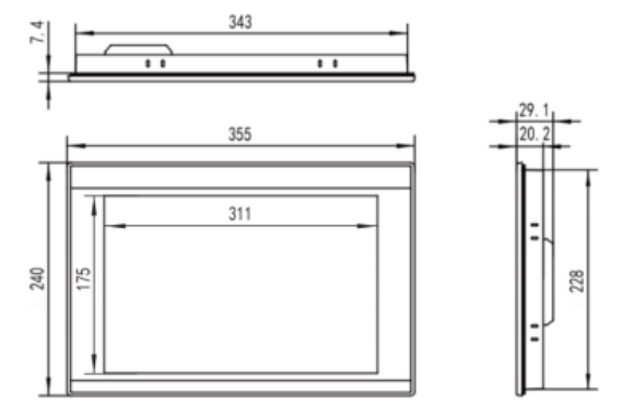
External dimensions
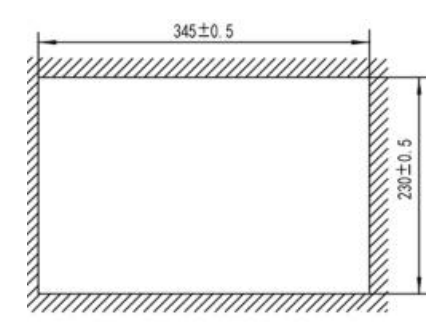
Opening size
l Installation method
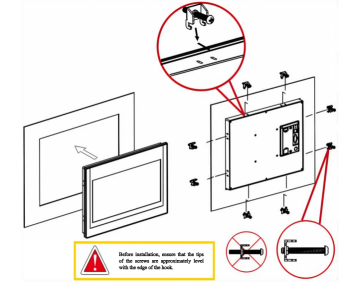
Hook installation
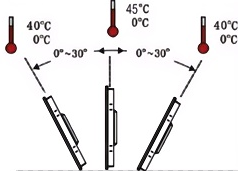
Installation angle
Product Maintenance
1.5.1 Replacement battery
Battery location: TPC On the circuit board inside the product
Battery specifications: CR1220 3V lithium batteries
To remove the battery: Remove the adhesive on top of the battery, gently move the positive terminal to the battery position, and the battery will pop out automatically.
Install the battery: First, place the battery into the positive terminal clip, and then gently press the other end under the plastic clip. Check that both plastic clips and the metal positive terminal clip are properly inserted.
During installation, please avoid short-circuiting the positive and negative terminals of the battery. 4G The expansion board needs to be removed first for the IoT screen . Make sure the pinholes on the expansion board are aligned.
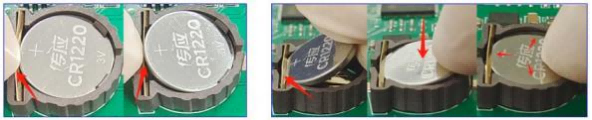
Remove battery Install battery
1.5.2 Touch calibration
Enter TPC In the system settings interface, press and hold on a blank area. 3 The touch calibration process will begin in seconds.
TPC Calibration: Use a stylus or finger to lightly press and hold the center point of the crosshair cursor. When the cursor moves to the next point, lift it. Repeat this action until the message "New calibration settings have been measured" appears. Click the "Confirm Calibration" button to save and exit the calibration program.
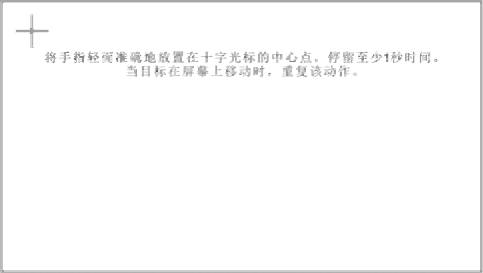
Place your finger lightly and accurately on the center of the crosshair cursor and hold it for at least one second as the target moves across the screen. Repeat this action.
1.5.3 Three-proof film
Give TPC Applying a protective film can effectively prevent dust , oil, and other contaminants generated during production from affecting the skin. TPC is susceptible to corrosion, therefore, if necessary, a protective membrane can be used to protect TPC. To protect it. This article takes... 1271Gn We will use this as an example for explanation; other models will be discussed later. TPC The steps for applying the screen protector are similar .
l Tools needed: TPC Includes a three-proof film (available for purchase from screen suppliers), dustproof cloth, anti-static environmentally friendly cleaning agent, and roller.
l Operating steps:
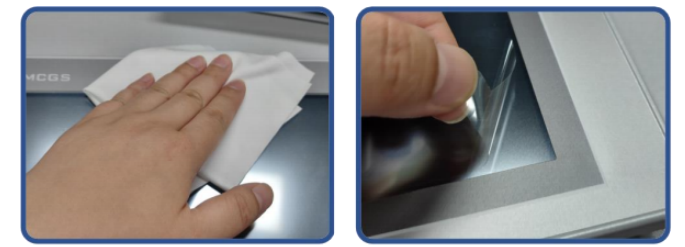
1) Clean the screen. Use a dust cloth to wipe away dirt from the front panel to prevent bubbles when applying the screen protector. If the TPC surface is heavily contaminated, use a cleaning agent to help clean contaminants in the crevices around the edges.
2) Remove the factory-installed PET protective film and clean any residue to prevent bubbles from forming during application.
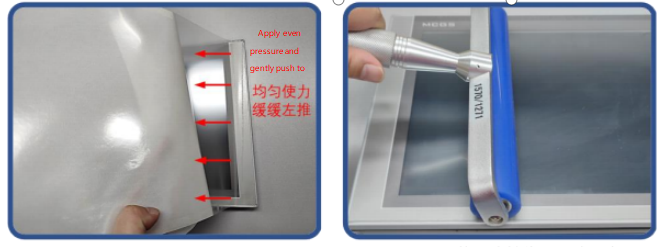
3) Peel off a corner of the backing film on the right side. Align the right side of the film with the right side of the TPC. With your left hand, slowly peel off the backing film, and with your right hand, apply even pressure to gently push the film onto the screen from right to left
4) After applying the film, use a roller to press the adhesive backing firmly to prevent air bubbles.
l Precautions:
1) The factory-installed protective film must be removed before applying the three-proof film. PET Protective film
2) The three-proof film is a consumable. If the edges are found to be peeling or bulging , a new film needs to be applied.
3) When replacing the protective film, pry it up from the lower right corner of the front panel, being careful not to scratch the sealing film.
2 Project Download
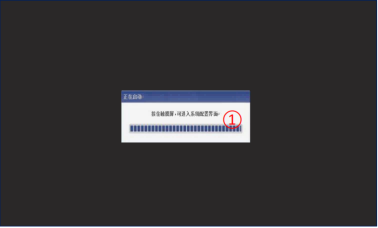
Step 1: Use 24V DC power supply TPC After powering on and starting up, a "Starting up" progress bar will appear on the screen. At this point, click... TPC①, You will be taken to the startup configuration interface. If no action is taken, you will be taken to the project running interface automatically .
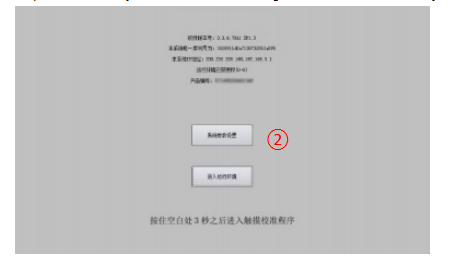
Step 2: Click the System Parameter Settings button ②. Enter TPC System settings interface.
Step 3: Select the Network Settings tab ③, and configure... TPC IP Address 4, TPC default I P Address is 200.200.200.190 .
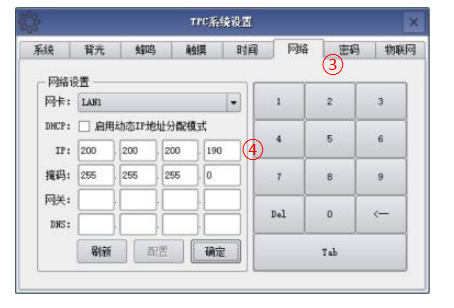
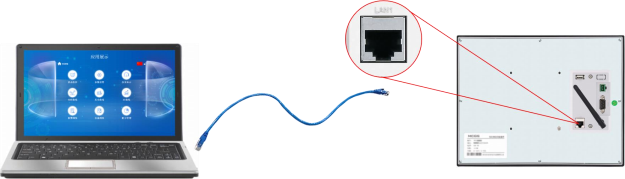
Step 4: Connect the computer and... TPC, and the computer IP With the connected TPC LAN port IP Set them to the same network segment.
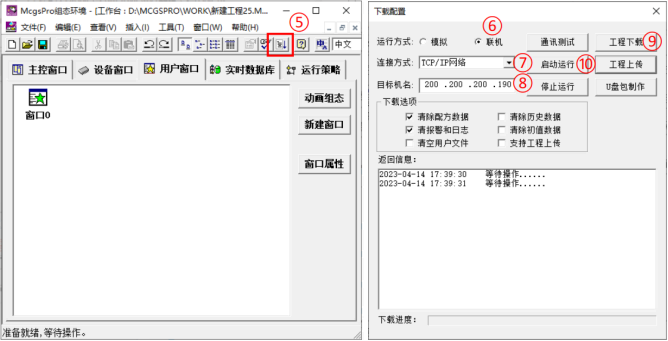
Step 5: Use MCGS Pro Open TPC Project, click to download project ⑤, Open the download configuration properties page and select "Online" as the run mode . Select the connection method "TCP/IP" "Network"⑦ Enter the target machine name TPC of IP Address ⑧ , Click "Download Project" (⑨). After the download is successful, click "Start & Run" (⑩) or... TPC The "Enter Runtime Environment" button on the interface runs the screen-side project.

Оставить сообщение
Отсканируйте QR-код для отправки в WeChat :

Отсканируйте в WhatsApp :